

At the end of each lesson, you can provide feedback on how useful you found the lesson.
Your feedback helps Knowness understand what is working well and where lessons could be improved.
1. Rating a Lesson
Each lesson includes a five-point feedback scale using emojis. Select the emoji that best represents how useful you found the lesson.

Figure 1. Lesson feedback scale.
Your rating is submitted for that lesson.
2. Adding a Feedback Message
After selecting a rating, you can also send an optional written message.
Use this to explain your rating or provide more specific feedback, such as:
- Clarity: Something was difficult to understand.
- Depth: You wanted more or less detail on a concept.
- Examples: An additional example would have been helpful.
- Presentation: A diagram, explanation, or interaction could be improved.
- General feedback: Anything else you think could make the lesson better.
Select Send feedback when you are ready to submit your message.
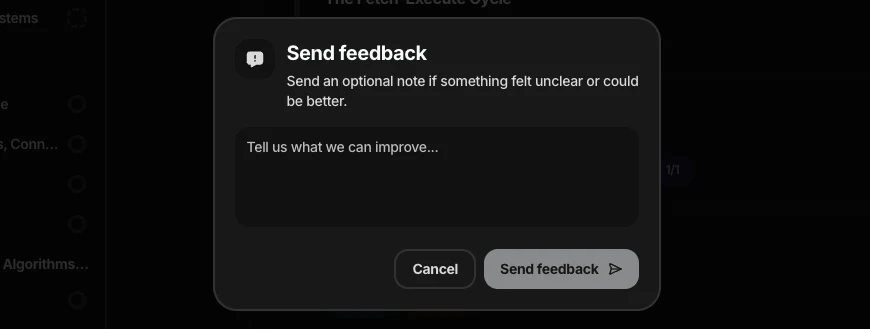
Figure 2. Optional feedback message shown after selecting a lesson rating.
3. Reporting a Mistake
Content Feedback is intended for general feedback about the quality or usefulness of a lesson.
If you have found a specific mistake, incorrect answer, technical issue, or other problem that needs to be investigated, use Report a Mistake instead.
See 3.10 Reporting a Mistake for more information.