

Knowness brings your learning, revision, assignments, progress, and study tools together in one workspace. This guide explains where to find the main features and how to move around the platform.
1. The App Sidebar
The sidebar is the main way to move around Knowness. You can collapse it to create more space and reopen it whenever you need it. On smaller screens, use the menu button in the header to open the sidebar.
The main student pages include:
- Home: View your learning overview, recent activity, subjects, progress, and suggested next steps.
- Subjects: Browse your available subjects and open their courses.
- Battles: Compete in live knowledge battles and practise against other learners.
- Decks: Create and study revision decks containing flashcards and exercises from different lessons and courses.
- Assignments: View work assigned by your teachers, including instructions, due dates, and completion status.
- Leaderboards: See your position and compare progress with other students.
- Shop: Spend the rewards you have earned on available items.
Some features may depend on your account, school membership, or Knowness plan.
2. My Subjects
Subjects you have added appear under My Subjects in the sidebar. Subjects are grouped by subject type, making it easier to move between different qualifications or areas of study.
Select a subject to open its main subject page. From here, you can access its courses, lessons, revision, assessments, progress, and other subject resources.
A subject remains under My Subjects until you choose to remove it.
3. Moving Through a Course
Courses are organised into sections, modules, lessons and topics. The course navigation shows how the course is structured and helps you move between its different parts. Open a module to view the lessons inside it.
Selecting a lesson opens its lesson page. Within a lesson, you may see the following tabs:
- All: View the complete lesson and all of its topics in one place.
- Learning: Work through the lesson content one topic at a time.
- Summary: Review a concise summary of the lesson.
- Revision: Review the flashcards and exercises associated with the lesson.
- Glossary: View definitions of important terms used throughout the lesson.
Flashcards and exercises appear throughout lessons so you can test yourself as you learn.
4. Completing a Lesson
Work through the lesson content and complete each flashcard and exercise as it appears. Once all required flashcards and exercises have been completed, you can complete the lesson.
Completed lessons are then added to your revision so that the knowledge can be reviewed again over time. For more information about why this works, see 1.2 How Knowness Works.
5. Revision
The Revision area contains flashcards and exercises from lessons you have completed. Knowness shows you the material that is ready to be reviewed, helping you focus on what needs your attention.
You can access revision in two main ways:
- Revision tab: Each lesson includes a spaced practice revision carousel where you can attempt all cards that are currently due for that lesson.
- Decks: The Deck Manager lets you create custom revision decks and also view all cards that are currently due across your subjects.
Try to stay on top of your due cards as soon as they become ready for review.
6. Tracking Your Progress
Knowness tracks your progress as you learn and revise. Depending on the subject or course, you may be able to view information such as:
- Course completion: See how far you have progressed through a course.
- Proficiency: See how secure your knowledge currently is.
- Estimated grade: See an estimate based on your current ability to recall and apply the material you have reviewed.
You can also view how your card proficiency changes over time.
The Card Proficiency over Time chart shows the number of cards you have completed up to each point in time. Time is shown along the horizontal axis and the number of cards along the vertical axis, with the chart showing a monthly view by default.
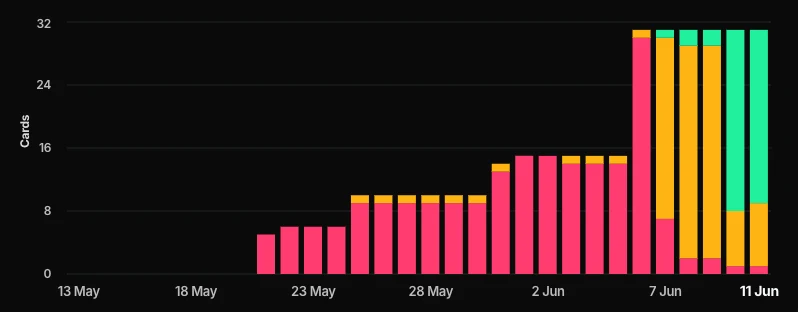
Figure 1. The Card Proficiency over Time chart, showing how a student’s card proficiency is changing as they complete more cards and reviews over a certain period of time.
Each vertical bar is divided by proficiency level. For example, if you had completed 32 cards at a particular point in time, the bar would show how many of those cards were at Low, Medium, High, and Max Proficiency.
This makes it easy to see not only how many cards you have completed, but also how securely you currently know them.
Proficiency can increase as you successfully review material and decrease if that knowledge has not been revisited for some time. You can learn more about proficiency and knowledge decay in 1.2 How Knowness Works.
7. Assignments
Teachers can assign work to you directly through Knowness. Open Assignments to see your current work, including:
- Assignment title: The name of the work you have been assigned.
- Instructions: Any guidance provided by your teacher.
- Due date: When the assignment needs to be completed.
- Completion status: Whether the assignment has been started or completed.
Assignments may link directly to specific lessons or course content so you can quickly open the work you need to complete.
8. Decks
Decks allow you to create your own collections of flashcards and exercises. You can bring material together from different lessons or courses and use it as a focused revision set.
Knowness also includes Live Decks, which update automatically based on the cards that currently need your attention:
- Due: Shows cards that are ready to be reviewed now.
- At Risk: Shows cards that are approaching a drop in proficiency and may benefit from being reviewed soon.
Live Decks update automatically as your revision schedule and proficiency change.
You can also create your own custom decks. These can be useful when revising a particular topic, preparing for an assessment, or grouping together material you want to practise more often.
9. Battles
Battles let you practise your knowledge in a more competitive format.
You can compete against other learners by answering flashcards and test how quickly and accurately you can recall what you have learned.
10. Study Tools
Knowness includes a range of study tools that you can access from the sidebar:
- Notebook: Create and organise notes while you study.
- Calendar: View your learning activity and important dates.
- Tutor: Ask for help and support with your learning.
- Timer: Run a focused study timer.
- Calculator: Use the built-in calculator.
- Code: Write and run code using the built-in code editor.
- Whiteboard: Create diagrams, annotations, and visual notes.
You can open these tools from any page and use them alongside whatever you are currently working on, so they are available whenever you need them.
11. Account and Settings
Use the account switcher near the top of the sidebar to view or change the active Knowness account. At the bottom of the sidebar:
- More: Contains additional resources.
- Settings: Lets you manage your profile, avatar, appearance, notifications, security, and account preferences.
- Log Out: Securely ends your session.
You may also see an Upgrade option if your account is eligible for Knowness Plus.