

Each subject contains a set of tabs that organise its course content, revision, assessments, progress, and other resources. The tabs available may vary depending on the subject type.
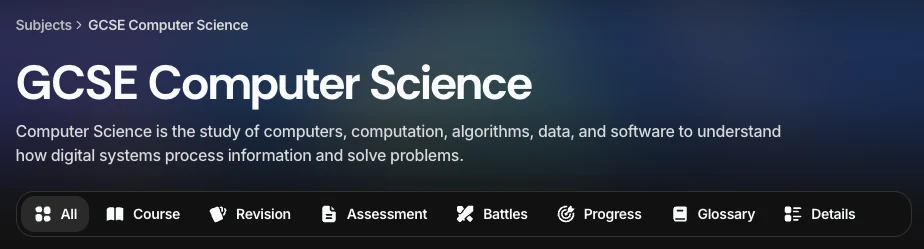
Figure 1. GCSE Computer Science (OCR) subject header, with the subject’s tabs.
1. All
The All tab gives you an overview of the subject.
At the top, you may see three progress cards:
- Completion: Shows how much of the course you have completed, including the number and percentage of lessons completed and your weekly change.
- Proficiency: Shows your overall proficiency level and percentage, along with your weekly change.
- Estimated Grade: Shows your current estimated grade based on your performance across flashcards and exercises, along with your weekly change.

Figure 2. Completion, Proficiency, and Estimated Grade cards.
The All tab also includes a course proficiency heatmap, showing the proficiency of each lesson across the course. Lessons are grouped by section, with modules separated within each section.
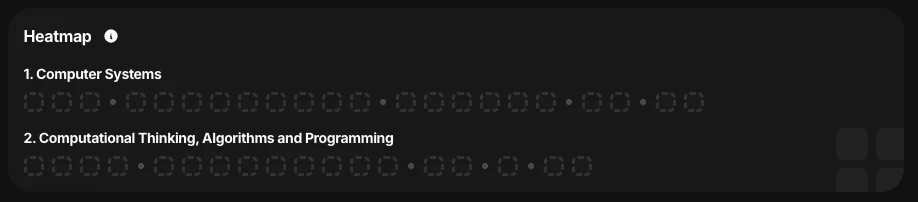
Figure 3. Course proficiency heatmap for GCSE Computer Science (OCR).
Quick-access cards at the bottom of the page let you open the other areas of the subject.
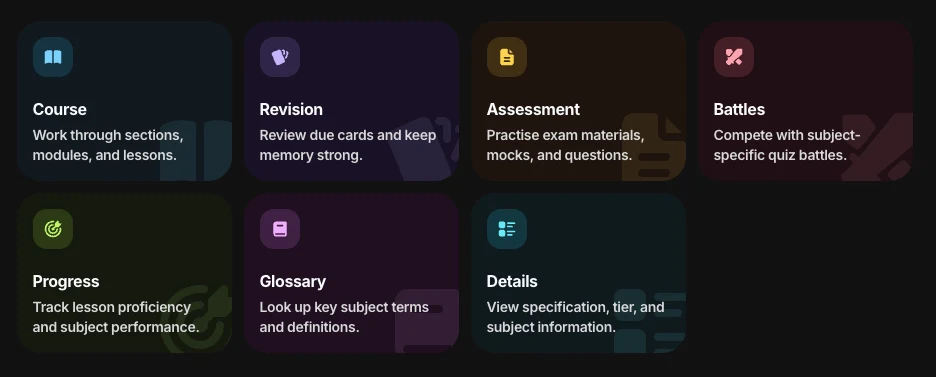
Figure 4. Quick-access cards for each subject tab.
2. Course
The Course tab contains the main course overview and structure.
It includes information such as:
- Course description: An overview of what the course covers.
- Variant: The exam board, specification, or other subject variant.
- Course structure: The number of sections, modules, and lessons.
- Estimated time: The approximate time required to complete the course.
You can also open sections, modules, and lessons from this tab.
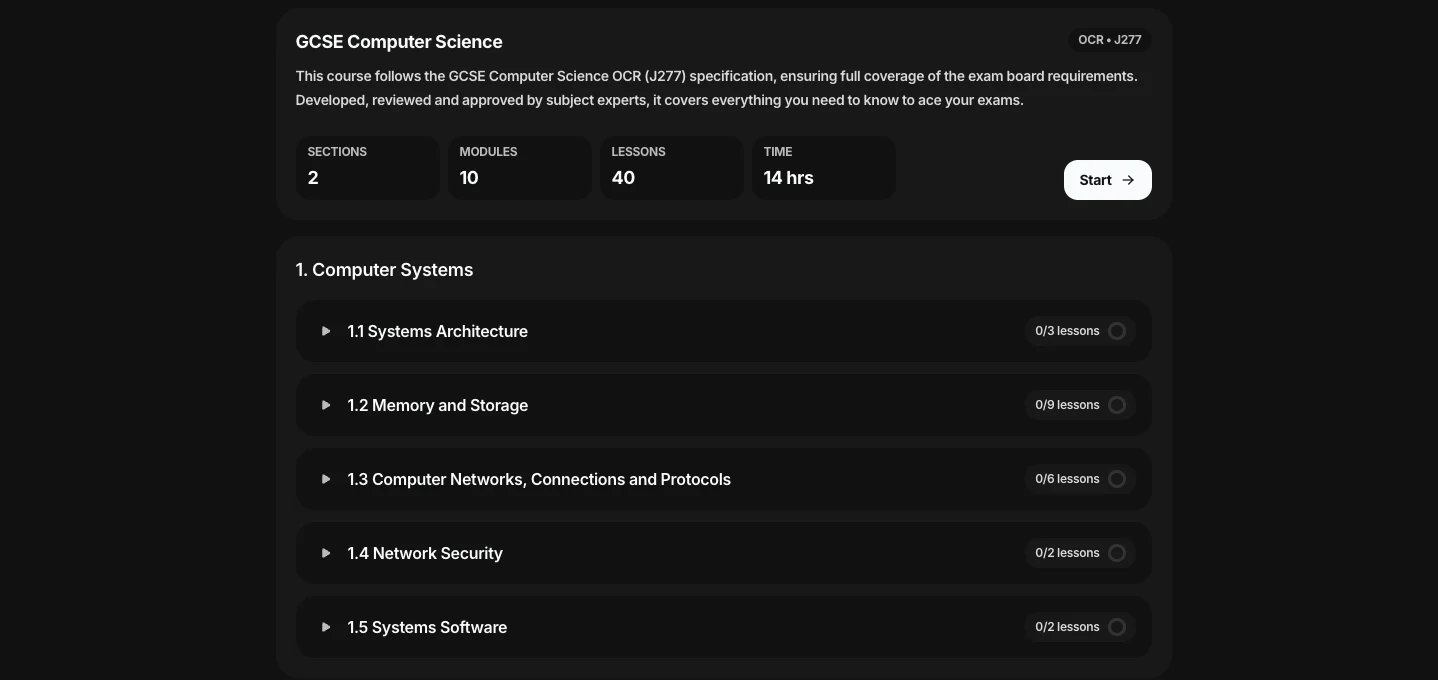
Figure 5. GCSE Computer Science (OCR) J277 course overview.
3. Revision
The Revision tab contains the subject’s spaced practice revision carousel. It includes flashcards and exercises from completed lessons that are ready for review.
As you complete cards, you can see how they move between proficiency levels:
- Not Attempted
- Low
- Medium
- High
- Max
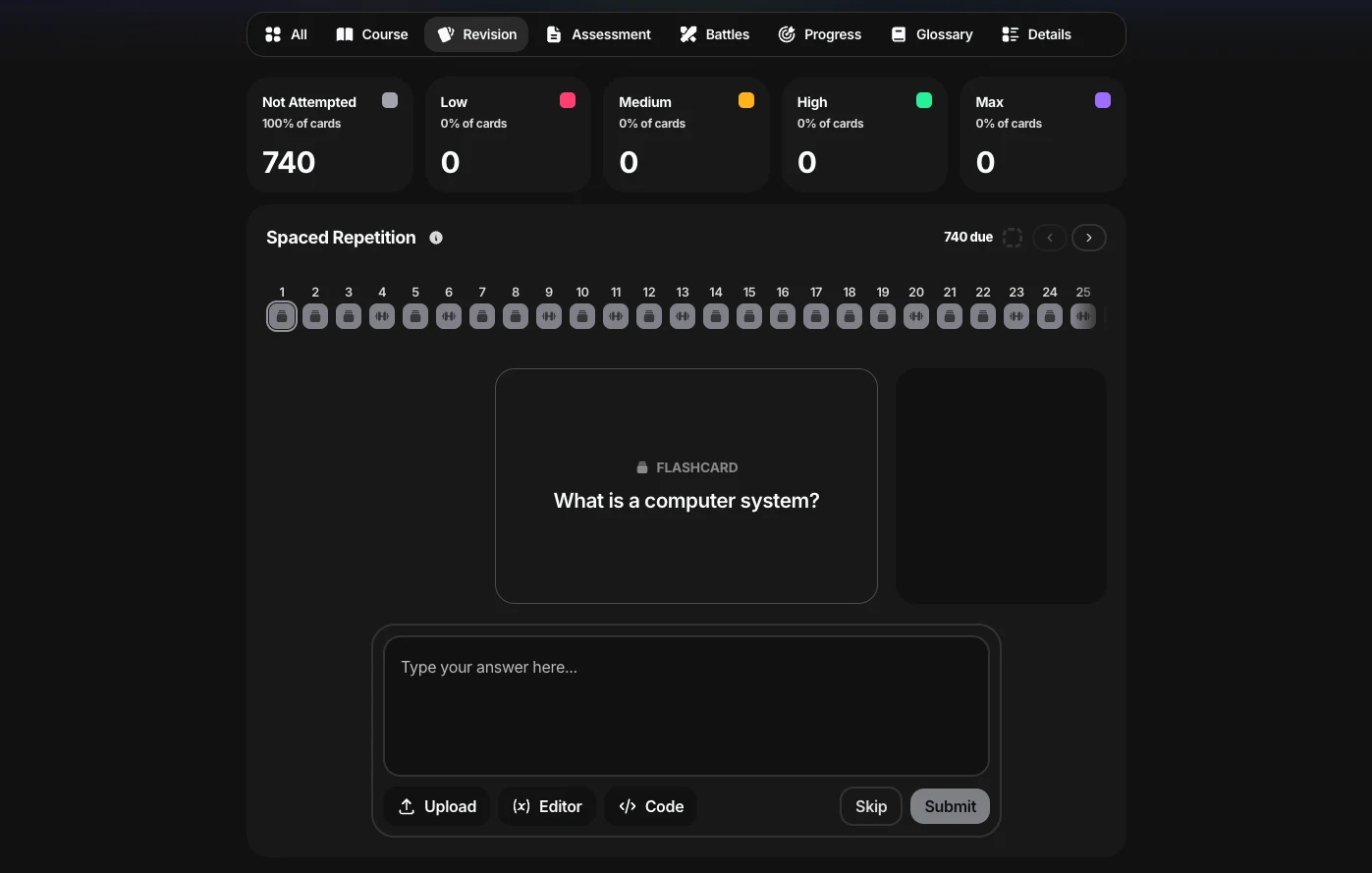
Figure 6. Revision tab for GCSE Computer Science (OCR), showing the spaced practice revision carousel and card proficiency levels.
Knowness automatically schedules when each card should be reviewed again based on your previous performance.
4. Vocabulary
The Vocabulary tab focuses specifically on key vocabulary within the subject.
It contains:
- Vocabulary revision: A spaced practice carousel for reviewing vocabulary items.
- Vocabulary list: A searchable list containing the vocabulary available for the subject.
- Vocabulary revision works in the same way as the main Revision tab.
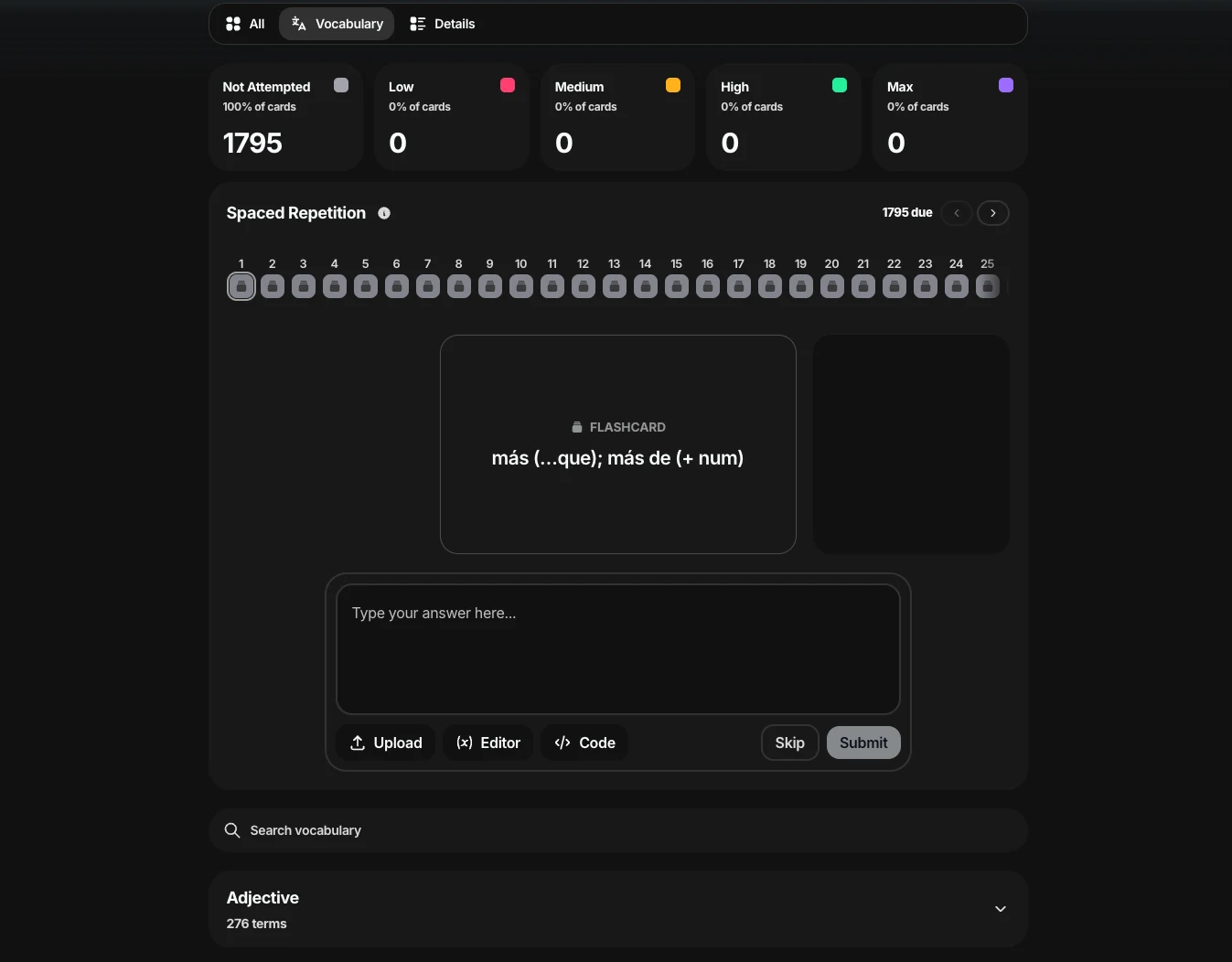
Figure 7. Vocabulary tab for GCSE Spanish (AQA), showing vocabulary revision and the vocabulary list.
5. Assessment
The Assessment tab contains assessment and exam resources for the subject.
Depending on the course, this may include:
- Grade boundaries: View grade boundaries from different exam series.
- Question papers: Access past exam papers.
- Mark schemes: View the corresponding mark schemes.
- Examiners’ reports: Read feedback and observations from previous exam series.
- Other exam materials: Access any additional resources available for the subject.
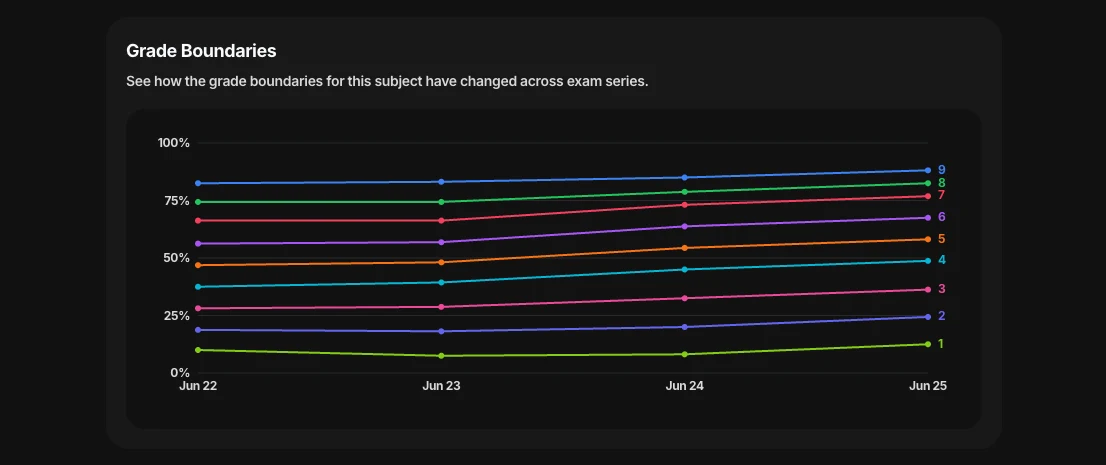
Figure 8. Grade boundaries for different exam series within the Assessment tab.
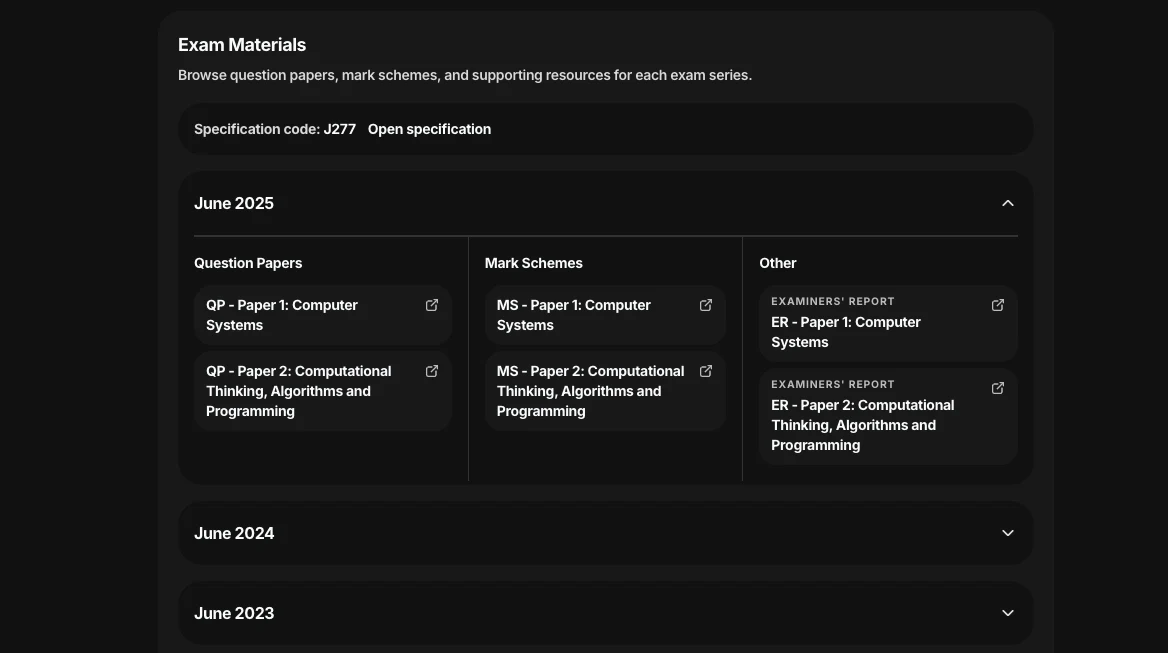
Figure 9. Exam materials within the Assessment tab, including question papers, mark schemes, and examiners’ reports.
6. Battles
The Battles tab contains Battles associated with that subject. You can view your Battle statistics, recent Battles, and other subject-specific Battle activity.
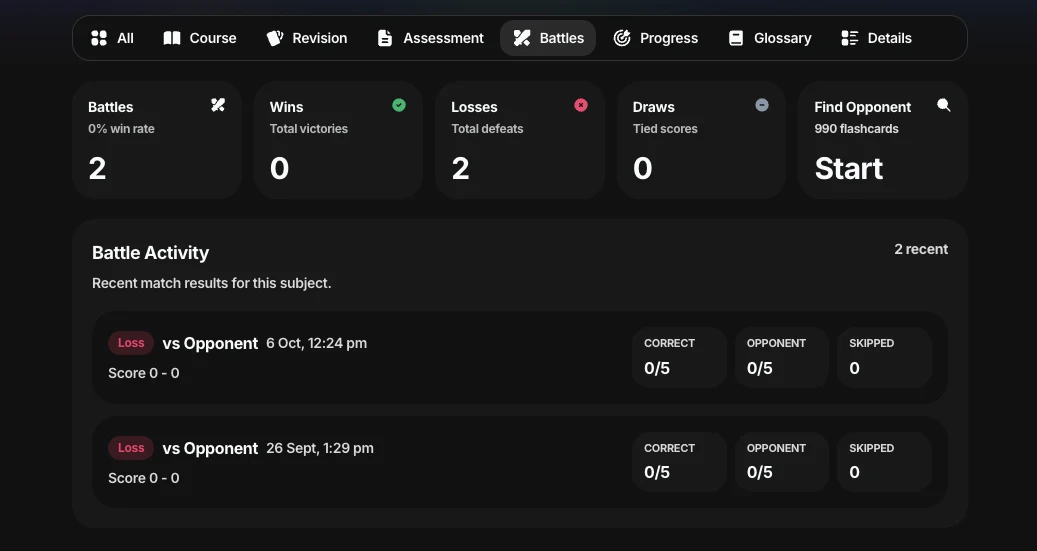
Figure 10. Battles tab, showing Battle statistics, recent Battles, and subject-specific Battle activity.
Battles allow you to compete against other learners by answering flashcards and testing how quickly and accurately you can recall what you have learned.
7. Progress
The Progress tab shows how your performance develops over time.
The Card Proficiency Over Time chart shows:
- Vertical axis: Number of cards attempted.
- Horizontal axis: Time.
- Bars: The number of cards at each proficiency level at that point in time.
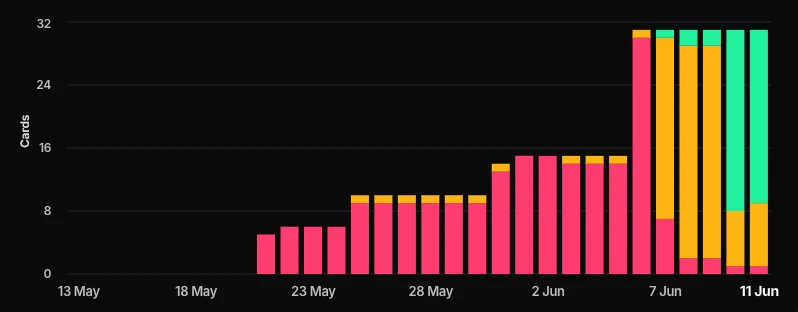
Figure 11. Card Proficiency over Time chart, showing changes in the number of cards at each proficiency level over time.
Each bar is segmented by proficiency, making it easier to see how your knowledge is changing over time.
The Progress tab may also show your progress across embedded interactions, with a tracker for each interaction type used throughout the course.
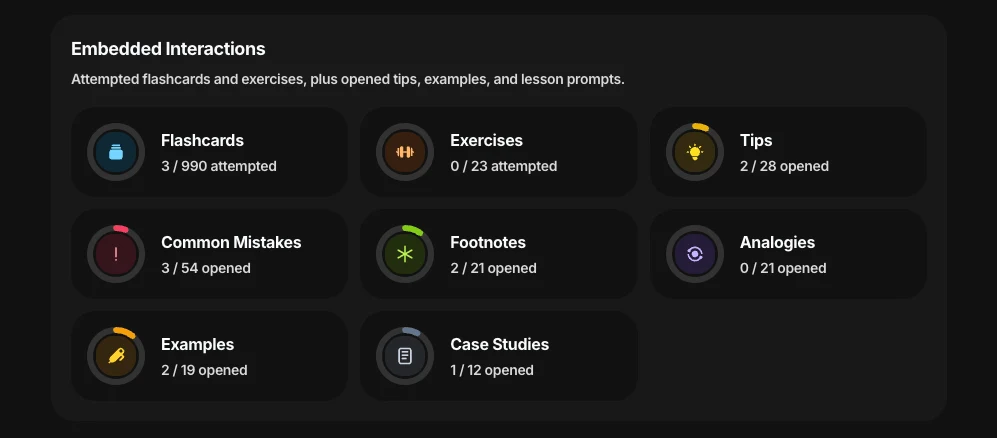
Figure 12. Embedded interactions progress trackers, showing progress across different interaction types within the course.
8. Glossary
The Glossary tab contains the key terms and definitions used across the subject. You can search the glossary to quickly find a term and its definition.
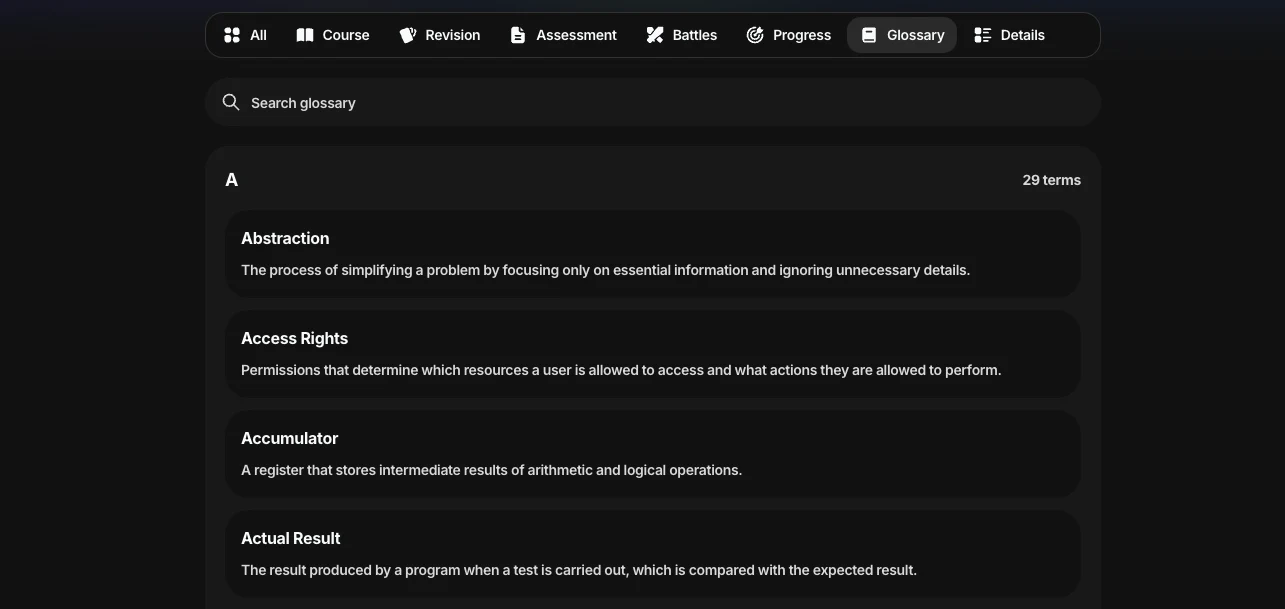
Figure 13. Glossary tab for GCSE Computer Science (OCR), showing searchable key terms and their definitions.
9. Details
The Details tab contains additional information about the subject.
This may include:
- Course details: Additional information about the course and its specification.
- Subject team: Information about the people responsible for the subject, such as the Subject Lead and Content Reviewers.