

Knowness courses are designed so you can quickly move between sections, modules, lessons, and topics.
1. Course Navigation
The course list appears on the left-hand side of the page. It is shown by default, but you can hide or show it at any time. It displays the structure of the course, including its sections, modules, and lessons.
You can:
- Expand or collapse modules: Show or hide the lessons within a module.
- Open a section, module, or lesson: Select an item to open it or view its contents.
- See your progress: Completion and proficiency indicators appear alongside lessons and modules.
- Open Module Review: Access the review for a completed module where available.
The lesson you are currently viewing is highlighted in the course navigation.
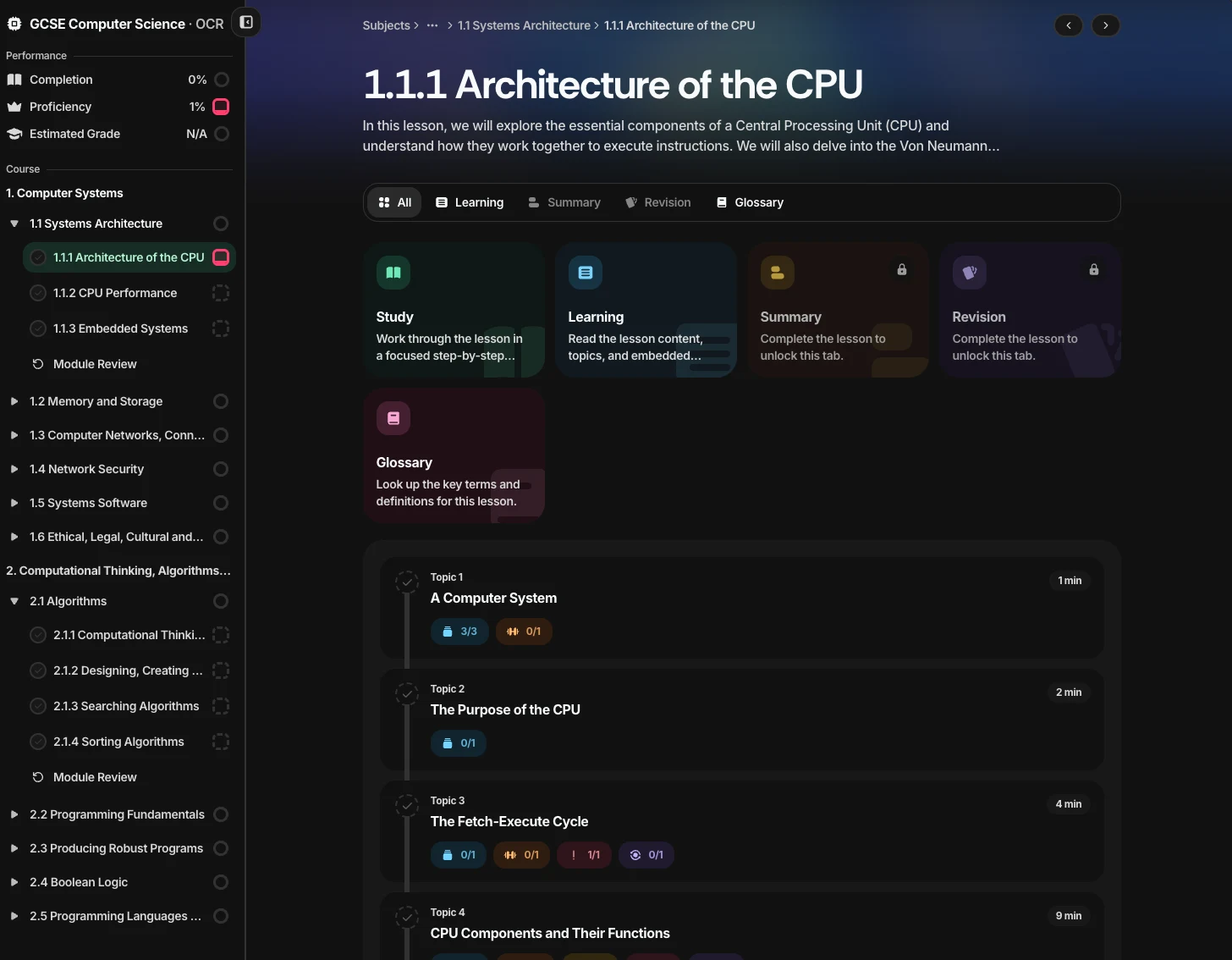
Figure 1. Course navigation showing sections, modules, lessons, and Module Review.
2. Breadcrumbs and Previous/Next Lesson
Breadcrumbs appear near the top of the page and show where you are within the course.
For example:
Subjects → GCSE Computer Science (OCR) → 1.1 Systems Architecture → 1.1.1 Architecture of the CPU
You can use the breadcrumbs to move back to a previous level of the course.

Figure 2. Breadcrumbs and previous/next lesson buttons.
The navigation arrows at the top of the page allow you to quickly move to the previous or next lesson without returning to the course overview.
This is useful when working through a course in order.
3. Lesson Tabs
Each lesson is divided into tabs that provide different ways to use the lesson content.
Depending on the lesson, these may include:
- All: View an overview of the lesson, its topics, and the available lesson areas.
- Learning: Read and work through the lesson content.
- Summary: Review a concise summary of the lesson after completing it.
- Revision: Revise the lesson's flashcards and exercises after completing it.
- Glossary: View the key terms and definitions used within the lesson.
The Summary and Revision tabs remain locked until you complete the lesson.
The Learning, Summary, and Revision tabs are explained in more detail in the following documentation.
4. Topics
Lessons are split into smaller topics.
The All tab shows the topics within the lesson in order, along with information such as:
- Topic name: The concept covered within that part of the lesson.
- Estimated time: The approximate time needed to complete the topic.
- Activities: The number of flashcards, exercises, and other embedded interactions within the topic.
- Completion: Whether the topic has been completed.
Select a topic to begin or continue learning that part of the lesson.
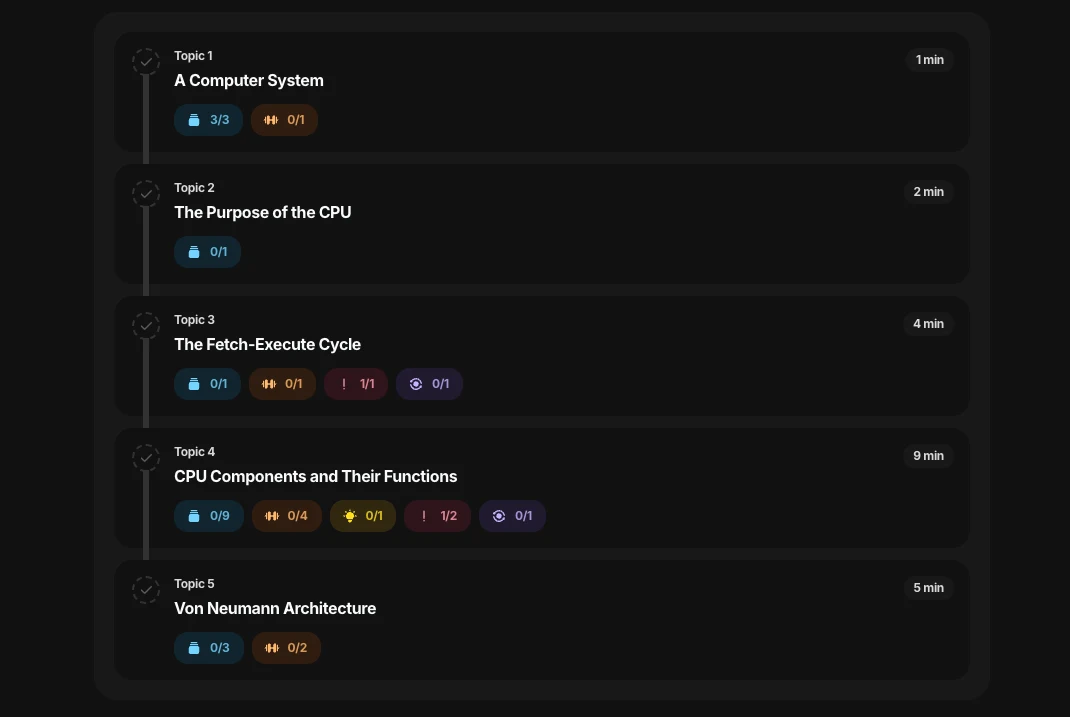
Figure 2. Topics within 1.1.1 Architecture of the CPU.
5. Moving Through a Lesson
When working through a lesson, you can move through its topics in order or return to a specific topic whenever you need to.
Your progress is saved as you work, so you can leave a lesson and continue from where you stopped later.